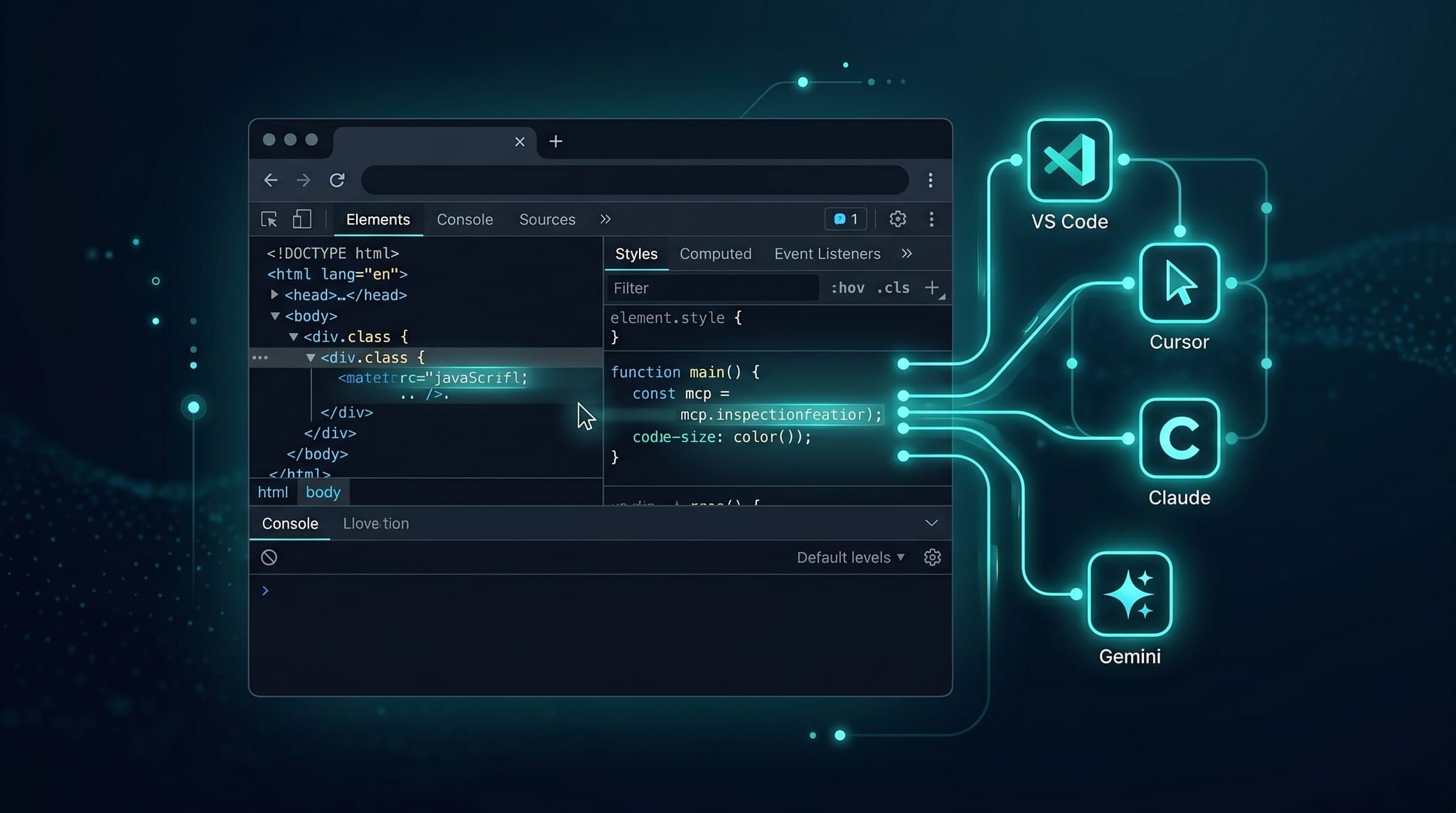
Chrome DevTools MCP: Giving Your AI Agent Eyes in the Browser
A professional walkthrough — from install to real-world use — of Chrome DevTools MCP across VS Code, Cursor, GitHub Copilot, Claude Code and Gemini CLI with npx chrome-devtools-mcp@latest and --autoConnect. JSON configs, the Chrome M144+ connection flow, Lighthouse and CORS debugging prompts, and a verification checklist.
On this page
Last week I asked an agent to fix a CORS bug on an admin page. It produced three versions that were all “theoretically correct” — add a header, flip credentials, patch middleware — and none of them worked. Because it couldn’t see the actual request in DevTools. It was guessing.
Chrome DevTools MCP closes that blind spot. The agent opens a real Chrome, reads a real Network waterfall, runs a real Lighthouse pass, and only then writes the fix. Here’s how I wire it up across VS Code, Cursor, GitHub Copilot, Claude Code and Gemini CLI, along with the workflows that have actually cut my debug cycles from half an hour to minutes.
TL;DR — npx chrome-devtools-mcp@latest is the only command you need to memorize. The --autoConnect flag (Chrome M144+) lets the agent reuse your signed-in Chrome session. Everything else is pasting JSON into the right config file.
Primary sources (read these first)
| Source | Link | Use for |
|---|---|---|
| GitHub | ChromeDevTools/chrome-devtools-mcp | Client configs, CLI flags, tool list |
| npm | chrome-devtools-mcp | Versions, changelog |
| Chrome for Developers | Chrome DevTools (MCP) for your AI agent | Design philosophy |
| Chrome for Developers | Let your Coding Agent debug your browser session | --autoConnect walkthrough |
| Tool reference | docs/tool-reference.md | 29 available tools |
Baseline requirements: Node.js ≥ 20.19 LTS, Chrome stable (or Chrome for Testing), npm. --autoConnect requires Chrome M144+ — if stable hasn’t caught up, pass --channel=beta or --channel=canary.
The shared base config
Nearly every client accepts the same root config. Pin it — every variant just adds flags:
{
  "mcpServers": {
    "chrome-devtools": {
      "command": "npx",
      "args": ["-y", "chrome-devtools-mcp@latest"]
    }
  }
}
-y skips the first-run npx confirmation. @latest pulls the newest package at startup — trade stability for freshness by pinning ([email protected]) if you run this in CI.
The flags I reach for most:
| Flag | Purpose |
|---|---|
--autoConnect | Attach to a running Chrome M144+ — keep your session |
--browser-url=http://127.0.0.1:9222 | Manual attach via remote debugging port (sandbox, WSL, VM) |
--headless | CI or background jobs |
--isolated | Ephemeral profile, wiped after close — ideal for repeat audits |
--channel=beta | Use Chrome Beta when stable lacks M144 |
--viewport=1440x900 | Normalize dimensions for screenshots |
--no-usage-statistics | Opt out of Google telemetry |
--slim | Three-tool subset (navigate, evaluate, screenshot) — saves context |
Per-client install
All six clients share the base config above — only where you put it and which command registers it differ. Expand the one you need:
1. VS Code + GitHub Copilot
Fast path — install as a plugin (recommended, ships skills too):
- Open the Command Palette (
⌘⇧P/Ctrl+Shift+P). - Run
Chat: Install Plugin From Source. - Paste
https://github.com/ChromeDevTools/chrome-devtools-mcp.
Manual — MCP server only:
code --add-mcp '{"name":"chrome-devtools","command":"npx","args":["-y","chrome-devtools-mcp@latest"]}'Or add to .vscode/mcp.json (workspace) / user settings:
{
  "servers": {
    "chrome-devtools": {
      "command": "npx",
      "args": ["-y", "chrome-devtools-mcp@latest"]
    }
  }
}
Open Chat, switch to Agent mode, tick chrome-devtools in the tool picker.
2. Cursor
One-click: use the install button from the README.
Manual: Cursor Settings → MCP → New MCP Server, paste the base config. The resulting file lives at ~/.cursor/mcp.json:
{
  "mcpServers": {
    "chrome-devtools": {
      "command": "npx",
      "args": ["-y", "chrome-devtools-mcp@latest", "--autoConnect", "--viewport=1440x900"]
    }
  }
}
Restart Cursor. In the Chat panel you should see chrome-devtools · 29 tools — that’s the green light.
3. Claude Code
Single-line CLI (MCP only):
claude mcp add chrome-devtools --scope user npx chrome-devtools-mcp@latestFull plugin (MCP + Skills):
/plugin marketplace add ChromeDevTools/chrome-devtools-mcp
/plugin install chrome-devtools-mcp
Restart Claude Code and run /skills to confirm skills loaded. The plugin bundles skills that steer the agent toward correct tool use — worth it if you want higher accuracy than the bare MCP.
4. Gemini CLI
# Project-wide — MCP only
gemini mcp add chrome-devtools npx chrome-devtools-mcp@latest

# Machine-wide
gemini mcp add -s user chrome-devtools npx chrome-devtools-mcp@latest

# Or install as an extension (MCP + Skills + auto-update)
gemini extensions install --auto-update \
  https://github.com/ChromeDevTools/chrome-devtools-mcp
5. Copilot CLI (GitHub CLI agent)
copilot
/mcp add
Enter:
- Server name:
chrome-devtools - Server Type:
[1] Local - Command:
npx -y chrome-devtools-mcp@latest
Save with Ctrl+S.
6. Codex CLI (incl. Windows 11)
codex mcp add chrome-devtools -- npx chrome-devtools-mcp@latestOn Windows 11, edit .codex/config.toml so Codex finds Chrome and allows a longer cold start:
[mcp_servers.chrome-devtools]
command = "cmd"
args = ["/c", "npx", "-y", "chrome-devtools-mcp@latest"]
env = { SystemRoot = "C:\\Windows", PROGRAMFILES = "C:\\Program Files" }
startup_timeout_ms = 20_000 --autoConnect: attach to your signed-in Chrome
This is the mode I recommend for daily work — the agent uses the exact session you have open: cookies, SSO, extensions, the tab you were already debugging. No restart, no re-login.
Three-step summary: (1) enable chrome://inspect/#remote-debugging in Chrome M144+, (2) add --autoConnect to your MCP client’s args, (3) run a smoke-test prompt and click Allow when Chrome asks.
--autoConnect binds to Chrome’s default profile. If you multi-profile, make sure the profile holding the session you need is the first one opened. The agent sees every window of that profile — don’t keep personal Gmail open when the agent is working on a customer engagement.
Full three-step walkthrough with JSON configs
Step 1. In Chrome (M144+), navigate to chrome://inspect/#remote-debugging and toggle Allow incoming debugging connections. Chrome writes a token into the current profile’s user data dir.
Step 2. Add --autoConnect to args. Example for Gemini CLI:
{
  "mcpServers": {
    "chrome-devtools": {
      "command": "npx",
      "args": ["chrome-devtools-mcp@latest", "--autoConnect"]
    }
  }
}
If stable hasn’t reached M144 yet, add --channel=beta (or canary) and launch the matching Chrome first:
{
  "mcpServers": {
    "chrome-devtools": {
      "command": "npx",
      "args": ["chrome-devtools-mcp@latest", "--autoConnect", "--channel=beta"]
    }
  }
}
Step 3. Fire a smoke-test prompt:
Check the performance of https://developers.chrome.comChrome pops a permission dialog — click Allow. From that moment the agent can read Network, run Lighthouse, and evaluate_script inside your tab.
When to prefer --browser-url (sandbox, WSL, Docker, VM)
Any environment where the permission dialog can’t surface. Launch Chrome manually with a debug port:
/Applications/Google\ Chrome.app/Contents/MacOS/Google\ Chrome \
  --remote-debugging-port=9222 \
  --user-data-dir=/tmp/chrome-profile-stable
Then point the client at it:
{
  "mcpServers": {
    "chrome-devtools": {
      "command": "npx",
      "args": [
        "chrome-devtools-mcp@latest",
        "--browser-url=http://127.0.0.1:9222"
      ]
    }
  }
}
Chrome requires a dedicated --user-data-dir when --remote-debugging-port is set — never use your personal profile; any app on the machine can connect to that port.
The 29 tools, grouped
Knowing what’s available makes your prompts tighter and the agent’s tool choice better.
| Group | Representative tools | Use case |
|---|---|---|
| Input (9) | click, fill_form, hover, press_key, upload_file | Reproduce user flows |
| Navigation (6) | navigate_page, new_page, wait_for, list_pages | SPA routing |
| Emulation (2) | emulate (device, network, CPU), resize_page | Test 3G, iPhone, reduced-motion |
| Performance (4) | performance_start_trace, performance_analyze_insight, take_memory_snapshot | Core Web Vitals, heap growth |
| Network (2) | list_network_requests, get_network_request | CORS, payload, timing |
| Debugging (6) | lighthouse_audit, evaluate_script, list_console_messages, take_screenshot, take_snapshot | Audit, console, DOM tree |
Need to save context? Use --slim — just navigate_page, evaluate_script, take_screenshot.
Prompts I’ve actually used
Guided Lighthouse audit
Don’t just say “run Lighthouse.” Give thresholds and demand a plan:
Visit http://localhost:3000/pricing. Emulate 4G throttling + Moto G4.
Run lighthouse_audit for performance, accessibility, seo.
If LCP > 2.5s or CLS > 0.1, performance_start_trace, reload, stop, then
performance_analyze_insight and return the top 3 causes. Propose fixes
with repo-local file/line — DO NOT edit code.
This forces the agent to plan first and not edit code in the first pass — you review insights before any changes.
CORS debugging (the classic)
Open https://app.local/dashboard. Wait for network idle.
list_network_requests filter status >= 400 or failed, domain api.local.
For the first failing request, get_network_request for full request +
response headers. Check Access-Control-Allow-Origin vs Origin, confirm
OPTIONS preflight returns 204, and look for missing Allow-Credentials
when the client sends credentials: 'include'. Summarize root cause in
3 bullets and propose a server-middleware patch — DO NOT edit code.
Three things the agent usually misses without prompting: (1) preflight missing Access-Control-Allow-Methods, (2) Allow-Origin: * is incompatible with credentials: 'include', (3) a proxy (Nginx/Cloudflare) stripping the header at a different layer.
Form + console repro
navigate_page to /checkout. fill_form {email:"[email protected]", card:"4242..."},
click "Place order". wait_for text "Order confirmed" or 10s timeout.
On timeout: list_console_messages (error, warning),
list_network_requests (status >= 400), take_screenshot viewport.
Return bundle: console log + failing request + screenshot + hypothesis.
Performance diff across commits
Emulate Slow 4G. Trace twice: before and after checkout of commit abc123.
Compare LCP, TBT, JS bundle size from network. Report deltas; flag if
TBT grows > 100ms.
Verification checklist
After pasting JSON, run this in order:
-
npx chrome-devtools-mcp@<pinned-version> --helpworks (Node ≥ 20.19; use a specific reviewed version, not@latest, on work machines) - Restart client —
chrome-devtoolsappears in the tool picker - Smoke prompt: “Check the performance of https://developers.chrome.com” → Chrome opens on its own
-
chrome://inspectdialog appears when using--autoConnect— click Allow - Agent returns Lighthouse scores, not “I can’t access a browser”
-
list_network_requestsreturns > 0 entries on a public page -
take_screenshotyields a PNG (check chat attachments) - On
ECONNREFUSEDwith--browser-url: is Chrome on the right port?curl http://127.0.0.1:9222/json/versionmust return JSON -
--autoConnectnot attaching? Chrome version ≥ 144 (chrome://version) and Allow toggled inchrome://inspect - Debug logs: add
--logFile=/tmp/cdp-mcp.logandDEBUG=*when filing issues
On macOS, if Chrome is slow to start and Codex/Cursor times out, raise startup_timeout_ms (default 10s, try 20–30s). The first npx run also spends 5–15s populating ~/.npm/_npx.
Security: don’t skip this
Chrome DevTools MCP exposes the entire browser to the MCP client. The agent reads DOM, cookies, localStorage, network payloads. Practical consequences:
- Don’t sign in with personal accounts on the profile you use with the agent. Use a dedicated work profile, or
--isolated. - Redact sensitive headers:
--redactNetworkHeadersmasks Authorization, Cookie, Set-Cookie before they reach the client. --remote-debugging-portis a public local port: any process on your machine can attach. Don’t enable it while browsing your bank.- Disable telemetry if required:
--no-usage-statisticsor envCHROME_DEVTOOLS_MCP_NO_USAGE_STATISTICS=1. CI auto-disables whenCIis set. - Pin versions in CI:
[email protected]instead of@latestto sidestep supply-chain surprises. See OWASP MCP Top 10 on tool description poisoning.
Enterprise guardrails
If your org has run a security review for Chrome DevTools MCP, it almost always lands on a set of mandatory conditions. Below is the most common version — it overlaps with the section above but is stricter and specific.
Required configuration (telemetry off, pinned version)
When running on a company machine, replace the @latest examples earlier in this post with this:
{
  "mcpServers": {
    "chrome-devtools": {
      "command": "npx",
      "args": [
        "chrome-devtools-mcp@<pinned-version>",
        "--no-usage-statistics",
        "--no-performance-crux"
      ]
    }
  }
}
The two flags disable two separate telemetry channels: usage statistics, and the CrUX API calls that send performance-trace URLs to Google. Without them, both usage metadata and internal URLs can leak.
Conditions of use
- Local developer machines only. No shared hosts, bastions, remote dev workspaces, or CI/CD. That means dropping the “CI performance budget” idea in the next section — keep it interactive on your laptop.
- Non-production environments only. Local dev and testing; don’t point the agent at production URLs, production APIs, or real customer accounts.
- Telemetry must be disabled: always
--no-usage-statisticsand--no-performance-crux. - Isolated Chrome profile. The server defaults to
~/.cache/chrome-devtools-mcp/chrome-profile— separate from your personal Chrome. For stronger isolation, add--isolated(ephemeral profile, wiped after each session). Avoid--autoConnectwith profiles holding production credentials. - Pin the version, run
npm audit. Do not use@latest. Pin to a reviewed version andnpm auditbefore adopting a new one. - Keep Claude Code’s permission prompts. Mutating actions (
click,fill,navigate_page,evaluate_script, …) must prompt for approval. Read-only actions (list_pages,get_console_message,list_network_requests) may auto-approve. Do not disable the prompts.
If your org hasn’t run a formal review, treat the six items above as the minimum baseline before letting the agent touch anything beyond your personal laptop. In particular: item 1 (no CI) is deliberately in tension with the “Performance budgets in CI” idea in the next section — that’s a personal workflow, not a recommendation for a shared company repo.
Productivity wins — from my workflow
A few ways Chrome DevTools MCP has compressed my cycle after a few weeks of daily use:
1. Visual-first PR review. Instead of pulling a branch locally, I have the agent open the preview URL (Vercel/Netlify), run Lighthouse on three key pages, and diff against a main baseline. Regression reports often catch a 40KB bundle bloat before a human notices.
2. Debugging flaky E2E. Playwright test flapping? The agent opens staging, replays that exact flow, captures console + network, cross-references the CI log. Finds race conditions, third-party timeouts, cross-domain cookie issues at a much higher hit rate than eyeballing trace files.
3. Migration audits. Webpack → Vite, framework majors. Snapshot performance across 10 critical URLs pre-migration, re-run post, diff. The agent writes the comparison table itself.
4. Hands-free bug repro. Vague customer report? Drop the URL + steps in chat, the agent reproduces, captures screenshot + console, files a fully-contextualized issue. My “open DevTools and fumble” tax dropped from 20 minutes to ~3.
5. Accessibility sweep. Run lighthouse_audit with accessibility + a DOM take_snapshot, ask the agent to list WCAG A/AA violations with CSS selectors. Feed straight into the a11y sprint backlog.
6. Performance budgets in CI. Combine --headless --isolated in pipelines; fail the build when LCP exceeds budget. Cheaper than a Lighthouse CI SaaS, and the same agent reviews the PR.
Last week’s actual numbers: one LCP regression (+400ms) caught pre-merge; two CORS fixes at ~5 minutes each instead of ~25; one flaky test turned deterministic after the agent pinpointed a race on navigator.serviceWorker.ready. Not magic — the agent finally sees what it’s fixing.
Seven canonical real-world applications
The six workflows above are mine. Chrome for Developers has published a set of canonical patterns teams have deployed successfully — worth keeping on your backlog when you’re looking for new places to introduce MCP:
| Pattern | What the agent does | Key tools |
|---|---|---|
| Automated bug fixing | Sees runtime errors directly, fixes, then tests in the browser — no second-hand descriptions | list_console_messages, evaluate_script, navigate_page |
| Persistent styling | Integrates DevTools inspector tweaks back into source code — solves losing CSS changes after refresh | take_snapshot, evaluate_script, editor |
| Performance optimization | Analyzes site performance with real data to pinpoint Core Web Vitals issues | performance_start_trace, performance_analyze_insight, lighthouse_audit |
| Automated UI/UX testing | Verifies features work as intended through real flows, not mocks | fill_form, click, wait_for, take_screenshot |
| Visual verification | Sees the actual rendered layout to catch visual bugs (overflow, dark-mode contrast, responsive breaks) | take_screenshot, emulate |
| Security scanning | Scans for vulnerabilities with full context of network requests and DOM — XSS sinks, mixed content, missing cookie flags | list_network_requests, get_network_request, take_snapshot |
| Reverse engineering | Inspects live network traffic and headers to auto-generate API clients or SDK wrappers | list_network_requests, get_network_request, evaluate_script |
Two patterns I find underrated: persistent styling — the agent picks up the hex values, spacing, and radii you tweaked in DevTools and commits them straight into the right @theme or token file — and reverse engineering to write client SDKs, especially useful when integrating with SaaS that only exposes a portal UI without public API docs.
Sources: Chrome for Developers — Chrome DevTools MCP for your AI agent and Let your Coding Agent debug your browser session.
Wrap: give the agent eyes, keep your hands on the wheel
Chrome DevTools MCP doesn’t replace your debugging instincts. It closes the gap between “agent guesses” and “agent verifies.” Install once, set --autoConnect plus --viewport, write prompts that force plan-before-fix — and you reclaim the dozens of minutes a day that used to drain into F12 + reload + squinting at the Network panel.
Tool reference, prompt templates, checklist — all above. The remaining hard part: break the habit of “fix CORS” prompts and replace them with contextually rich ones. The better the agent can see, the less you have to babysit.